You plug in, arm a track, play a chord, and hear it come back a split second late. The fix is not a magic plugin. It is choosing the right monitoring path and knowing which handful of settings in FL Studio and Cubase actually control the delay.
What Latency Really Is and How Low It Needs to Be
Your guitar signal goes through an analog to digital converter, into the computer, through the DAW and any plugins on the track, back out through a digital to analog converter, and finally to your ears. Every step costs time, and the total is what you feel.
Buffer size is the biggest lever you control. At 48 kHz, a 128 sample buffer is about 2.7 ms in one direction, so a full round trip through the DAW lands somewhere around 6 to 8 ms once converter overhead is added. Most players feel comfortable under about 10 ms. Past 15 ms it starts to feel like playing in a swimming pool.
The two monitoring paths
Software monitoring sends your guitar through the DAW and back. This is how you hear an amp sim live while you play. It always has some delay, but with a small buffer it feels instant.
Direct monitoring sends the signal straight from the interface input to its output and never touches the computer. This is true zero latency. The catch is that you hear the dry guitar, not your amp sim.
Most home setups blend the two ideas: play through direct monitoring when feel matters most, or run a small buffer with an amp sim when you need to hear the finished tone while tracking. Decide which one you want before you start, because the settings differ.
Set Up Your Interface and Driver Before You Open a Project
Get this right once and both DAWs behave.
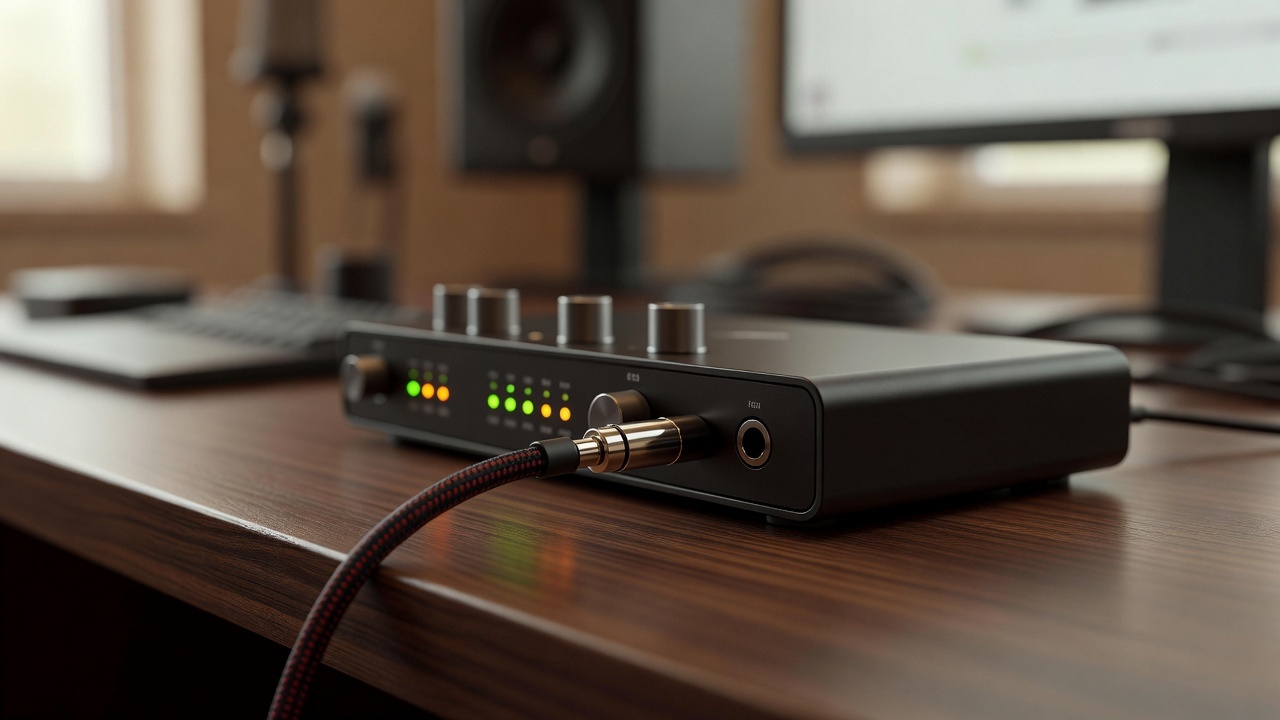
- Install the manufacturer’s own ASIO driver for your interface. On Windows, only fall back to a generic driver if your interface truly has none.
- Set the buffer to 64 or 128 samples while tracking. Raise it to 256 or 512 later for mixing, when latency stops mattering.
- Work at 48 kHz. It is the standard for video work and keeps converter overhead predictable.
- Plug straight into a port on the motherboard, not a USB hub, and turn off USB power saving in Windows Device Manager.
- Never monitor over Bluetooth headphones. The codec alone adds 100 ms or more.
- Close browsers, cloud sync apps and anything else grabbing CPU while you record.
Recording Electric Guitar in FL Studio
Open Options > Audio Settings and pick your interface's ASIO driver. Set the buffer to 128 samples and watch the latency readout just below it. If the total sits under 10 ms you are in good shape.
Now route the guitar. On the FL Studio mixer, choose a free insert and set its input to the interface channel your guitar is plugged into. The record arm button on that mixer track is what enables input monitoring, so click it and you should hear yourself.
If the sound is hollow or doubled, you have monitoring switched on in two places at once. Turn off the interface's own direct monitoring in its control panel, or turn off FL Studio's, but never both together.
Drop your amp sim on that same mixer track and load it before you hit record. FL Studio compensates plugin delay automatically, so a heavy amp sim will not push your recorded take off the grid.
Record a clean DI at the same time on a second mixer track fed from the same input, with no plugins on it. Keep it muted while you play. If you later want a different tone, you can reamp that dry file instead of asking the guitarist for another take.
If takes consistently land slightly early or late against the grid, check the recording offset in the audio settings and nudge it until a single muted strum lines up.
Recording Electric Guitar in Cubase
Go to Studio > Studio Setup > Audio System and select your ASIO driver. Drop the buffer to 128 samples for tracking.
Next, decide how you want to monitor. In the same setup window, under VST Audio System, there is a Direct Monitoring checkbox. Switch it on and Cubase stops passing input through the DAW, so you hear your guitar with zero latency but no amp sim.
That is perfect if you are happy playing dry. If you need the amp sim in your ears, leave Direct Monitoring off, keep the buffer small, and enable Constrain Latency Compensation in the same window. This stops Cubase stacking extra delay on top of the buffer.
Create a mono audio track, set its input to your guitar channel, and click the monitor button, the small speaker icon on the track. Add your amp sim as an insert. Then set Preferences > VST > Auto Monitoring to While Record Enabled or While Record Running so monitoring switches itself at the right moment.
The practical compromise many players land on: use direct monitoring through a hardware modeler or amp with a headphone out, and record the DI plus the modeler's line out at the same time. You get a real amp feel in your ears and a clean file on disk.
Dialing In an Amp Sim That Feels Right to Play
Input gain comes first. Aim for peaks around -12 to -6 dBFS at the interface, and never clip the converter. Amp sims react badly to a hot input and sound fizzy rather than punchy.
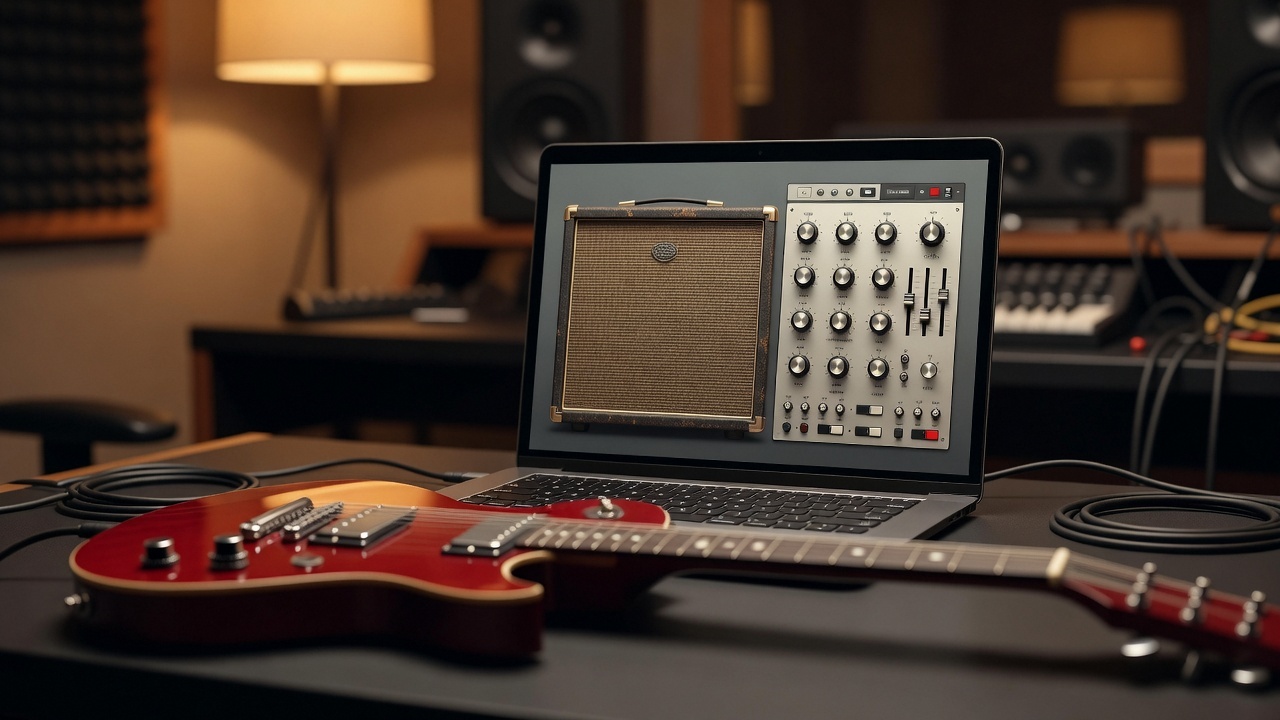
Oversampling is the hidden latency culprit. Many amp sims add samples of delay when oversampling is enabled. Use a low latency mode while tracking, then switch to the high quality setting before you export.
Stack the chain sensibly. Guitar, then a noise gate, then a high pass filter around 80 to 100 Hz to clear single coil hum and rumble, then the amp and cabinet section. Put a subtle reverb or slapback delay after the amp. A little ambience makes the guitar feel like it is in a room and helps you play more naturally, and it costs you nothing in latency because it sits after the amp.
If you are double tracking, record the same part twice rather than copying and pasting. Pan the two takes hard left and right for a wide, stable rhythm sound.
Small Habits That Remove Latency for Good
- Monitor through one path only. Two paths create a comb filtered, phasey tone.
- Keep the plugin count before the amp sim low. Every lookahead compressor or linear phase EQ adds delay.
- Fix crackles with a lighter session, not a bigger buffer. Bounce the drums and freeze synth tracks instead.
- Do not chain three amp sims to build one tone. Use one good sim and an impulse response.
- Disable Wi-Fi while tracking if you get random dropouts, and check that no background app is updating.
- Test your setup with a single muted strum before you press record for real. Ten seconds of checking saves a whole take.
Gear that helps
A quiet, well shielded guitar makes high gain amp sims far easier to tame, so if yours buzzes constantly it is worth browsing the Electric Guitar range before you blame your plugins. If you would rather monitor through real speakers than headphones, a small modelling combo or a head with a direct or line output from Guitar Amplifiers gives you a true zero latency monitor path plus a clean signal you can record at the same time. Pair either with a decent interface and a short, shielded instrument cable and latency stops being something you notice.